 And no, it’s not because I wanted to cut ties from Amazon. My experience with Amazon has actually not been that bad. I don’t buy books directly from Amazon’s store, instead I sideload my EPUBs through the “Send to Kindle” feature, and it has been working great for me since the beginning. There was a little change recently where they shifted from supporting MOBI to EPUB, but it wasn’t a big deal and actually a great feature since EPUBs are more easily available.
However, I had one particular issue that made me pull the trigger. Drumroll please… 🥁 I wanted to turn the pages of my book without getting my hands out of the blanket. Yep, I’ve gotten a few remarks that I’m being too lazy, but hey, that’s a fact I’ve long accepted.
Why not get a physical page turner that you can easily buy on Amazon, you might ask (if you’ve encountered this problem yourself)? Because it costs around ₹2500 (30$), and it needs to be physically attached to the Kindle, most of them only include the option to turn one side of the page, it needs to be charged, and most importantly, it’s tiny so I can lose it easily or not find it when I need it the most. You get the point.
Another minor reason I’d like to mention is Amazon’s choice to remove the bluetooth option from Kindle’s UI because the region doesn’t have proper Audible support. Why Amazon, just why? Now they might’ve reasons to disable it but I wanted that toggle so I can use my Kindle as an audiobook player. (Spoiler: You can install Media Player in a jailbroken Kindle.)
So it began
I had practically no idea how to jailbreak a Kindle, or what the actual pros and cons were. So, I asked Gemini whether it was a good idea. Being a fan of my tinkering capabilities, it told me to go ahead and outlined that there would be little to no downsides for my Kindle. I likely won’t be able to officially update my Kindle again, and my warranty was voided a long time ago. Since it has already been seven years since its release, there likely won’t be any major software releases for my Kindle 10th Generation Basic anyway, so I was ready to bite the bullet.
I won’t go into the exact, granular details of how I did the jailbreak here, but here are the resources I used:
- Kindle Modding: You can read this article if you want to perform the jailbreak yourself (do it at your own risk!).
- Kindle Mod Shelf: This is the other great resource where you can find out about the different mods and plugins available for Kindle and KOReader.
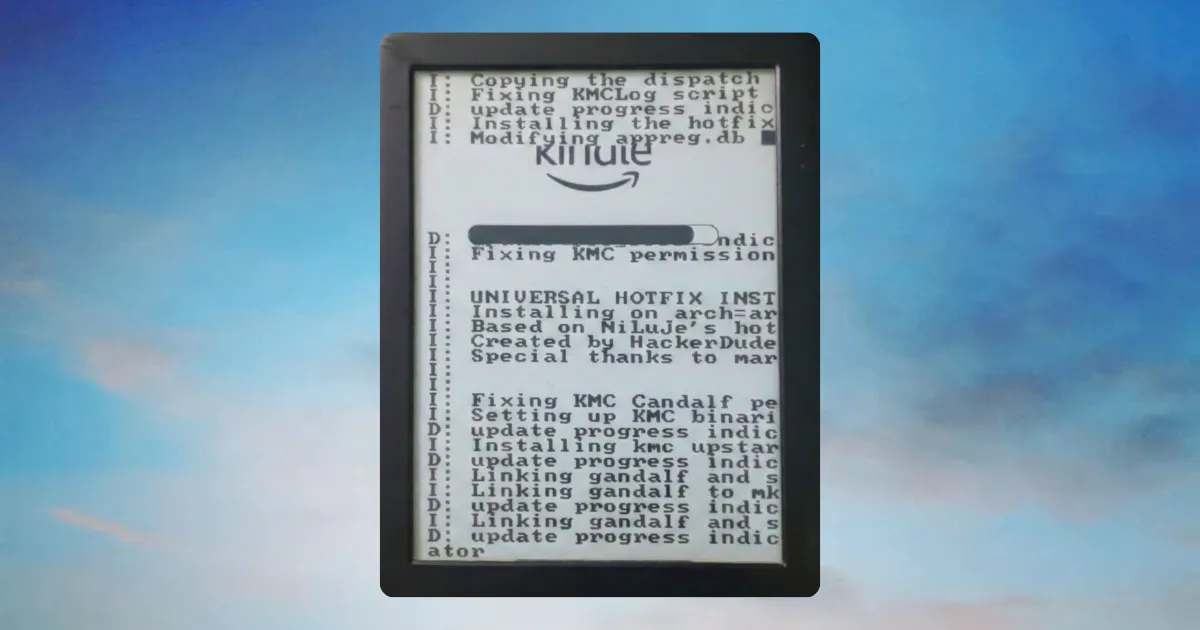
The jailbreak method available for my Kindle’s version was AdBreak which uses Kindle’s lock screen advertisement to execute the jailbreak exploit. Since the Indian version of Kindle doesn’t show ads, I had to change the region and enable special offers to receive ads so that I could run the exploit. It’s pretty ironic and funny.
KOReader & The HTTP Page Turner
The most important piece of software for my jailbroken Kindle is KOReader. It essentially replaces the default reader app of your Kindle and brings in significantly more features and extensibility. But the most important feature that I was looking for is being able to turn pages remotely using a simple HTTP request. You just need to start the “HTTP Inspector” server in KOReader, and then use your phone (or custom hardware) to send a remote request. Both devices need to be on the same Wi-Fi network for this to work.
Now, you can just manually hit the URL every time you want to turn to the next page. It looks something like this:
http://192.168.x.x:8080/koreader/event/GotoViewRel/1(Next Page)http://192.168.x.x:8080/koreader/event/GotoViewRel/-1(Previous Page)
Alternatively, you can use a companion app like Tomas DiLeo’s KOReader Page Turner. You just enter the IP address and port you get from KoReader, and it gives you options to turn pages (via touch or volume buttons) and even control the backlight and warmlight.
Since it was working as expected, I decided to take it one step further. So the problem for me was that I really didn’t want to keep my phone screen on and leave a dedicated app open. For one, I didn’t want to accidentally press on-screen buttons while moving around in bed. Secondly, I didn’t want my Digital Wellbeing stats to spike up when I’m really just reading on my Kindle.
Making volume keys work on locked screen
So, I decided to use automation apps. I initially tried using MacroDroid. I spent a really long time trying to make it work but for some reason, it completely refused to work when the screen was locked. So, I asked Gemini for alternatives and it suggested Key Mapper which turned out to be better than MacroDroid. After a little tinkering, it worked flawlessly. Since my phone is already rooted, it was a relatively easy process to give the permissions required for it to work.
Finally, I can turn my Kindle pages with my phone’s physical volume controls while the screen is completely off. Yay!
Here’s the screenshot of my Key Mapper setup if you want to replicate it:
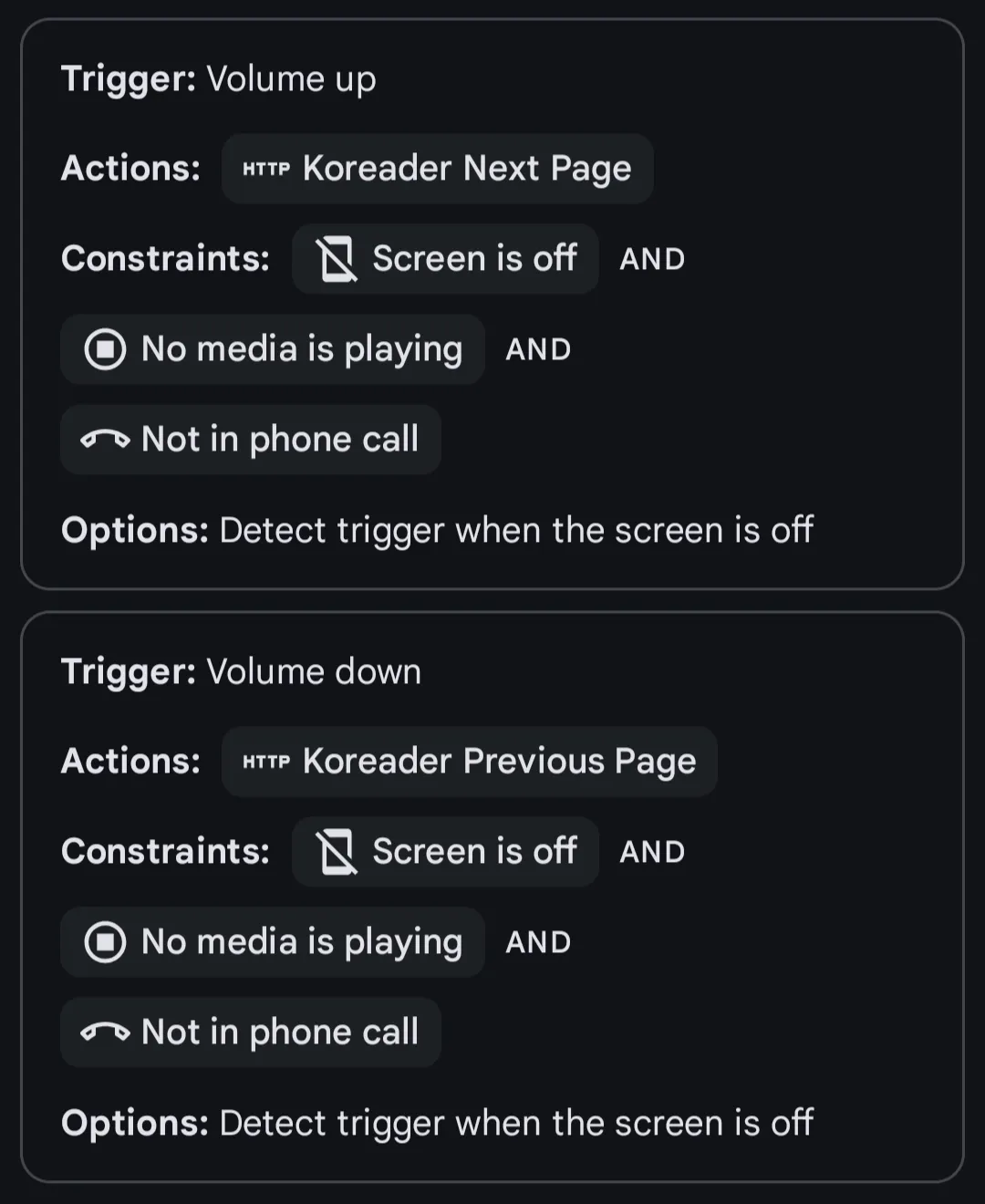
It sends a http request to the URL I shared earlier whenever a volume key is pressed. But since I need my volume keys to, well… control volume too, I added a few constraints so that it won’t run when my screen is on, or I’m listening to something, or I’m on a phone call.
I still need to move my entire library from the Kindle’s default storage space over to KOReader, and then spend some time configuring KOReader’s settings to truly make it my own. But that will probably take a long time, maybe I’ll write another post about that process later.
For now, I’m just happy that I can turn pages on my Kindle without lifting my hand. Over-engineered? Maybe. Worth it? Definitely. And as I mentioned to my friend that you won’t really get it unless you own a Kindle. So, that’s it! I hope you enjoyed reading about my shenanigans.
Keep reading, and take care of yourself. Bye!
PS: Though I’ve used Gemini multiple times during this process, it was mainly for brainstorming purposes. You shouldn’t solely depend on it, as it can very confidently provide you outdated information. In this case, running an old exploit or exploit meant for different firmware version or model could have permanently bricked the device. Always cross-check the information provided by LLMs!